The Google Search widget is a mainstay on Android home screens, but most people only use it for basic text searches. Beneath its simple appearance lies a toolbox of hidden capabilities—from instant translation and reverse image search to customizable shortcuts and live updates. These features can save you time and make your phone smarter. Here are seven powerful tricks you can start using right away.
1. How can you translate text instantly from the widget without opening the Google Translate app?
To quickly translate any text, long-press the Google Search widget and tap the microphone icon (or simply say “Hey Google, translate [phrase]”). But there’s a more direct method: just type “translate [word] to Spanish” into the search box. The widget will display the translation in a card, complete with pronunciation. No need to launch a separate app. This works with multiple languages and can even translate incoming text from copied clipboard items if you have the Google app open. Another hidden tool is image search, covered next.
2. What’s the secret to doing a reverse image search without opening the Google Lens app?
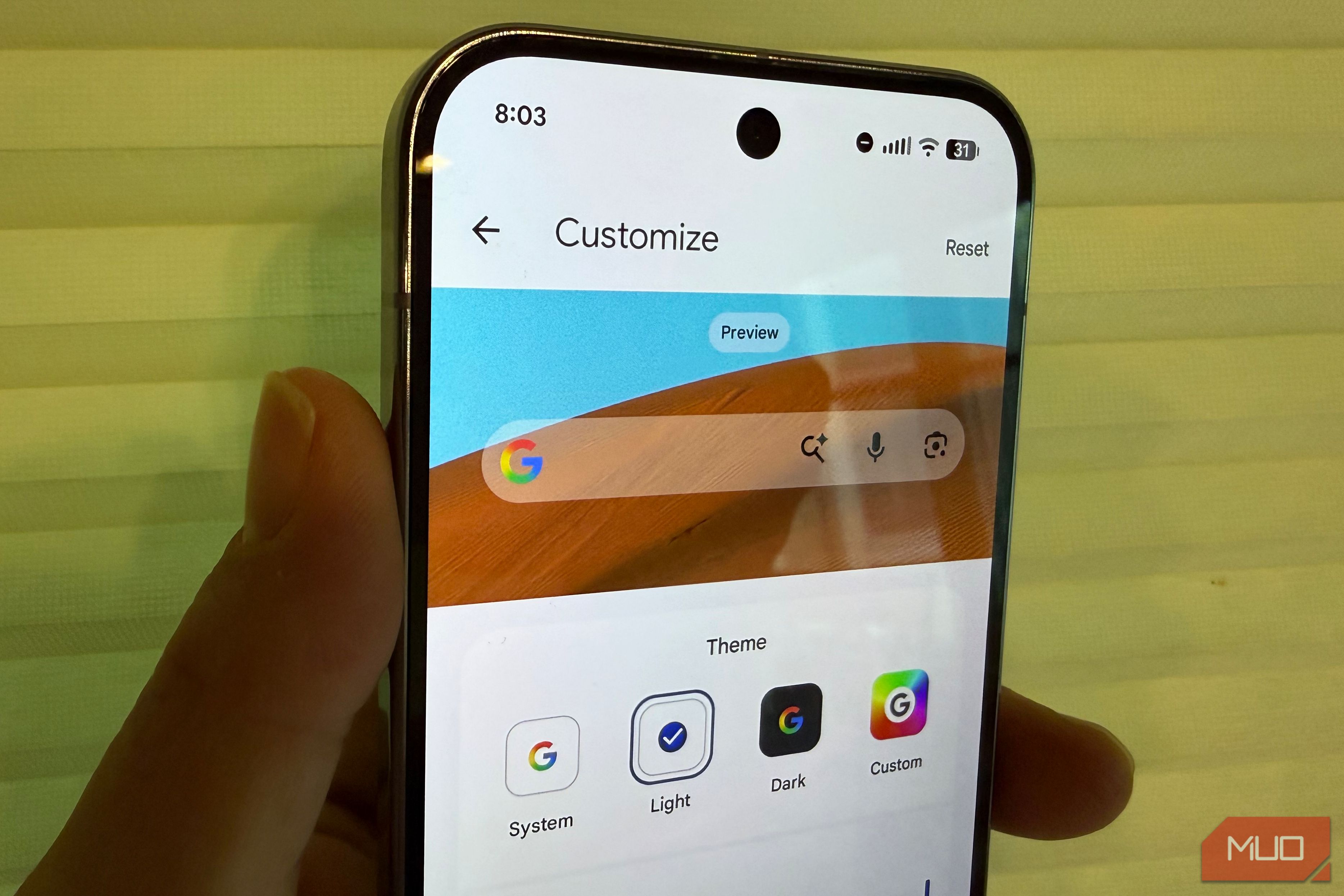
Tap the camera icon to the right of the search bar in the widget. This opens Google Lens directly within the widget interface, letting you search for an image by taking a photo, uploading from your gallery, or pointing at something. The results show visually similar images and related information. It’s a quick way to identify plants, products, or landmarks without switching apps. Pro tip: You can also long-press an image on your phone and drag it onto the widget to initiate a search—though that gesture works best on Pixel phones.
3. How do you create custom shortcuts inside the search widget for faster actions?
Long-press the widget and select “Shortcuts” from the pop-up menu. You’ll find a variety of preset actions like “Song Search,” “Translate,” “Shop,” and “What's on my screen.” Tap any of them to add a dedicated one-tap shortcut to your widget. These shortcuts replace the generic search bar with specific functions, letting you jump straight to that task. For example, a “Song Search” shortcut identifies music playing around you with a single tap. Other hidden features include live updates on weather and scores.
4. Can the widget display live sports scores, stock prices, or weather forecasts without tapping?
Yes, but it requires enabling “Show feed suggestions” in the Google app settings. Once on, the widget will rotate through cards showing the latest weather, news headlines, sports scores, and stock updates based on your interests. You don’t have to open any app—the information appears automatically. To customize what appears, go to Settings > Google > Search widget > Feed. From there, you can choose categories. Note: This feature may not be available in all regions or on all Android launchers.
5. How do you activate voice search from the widget without tapping the microphone icon?
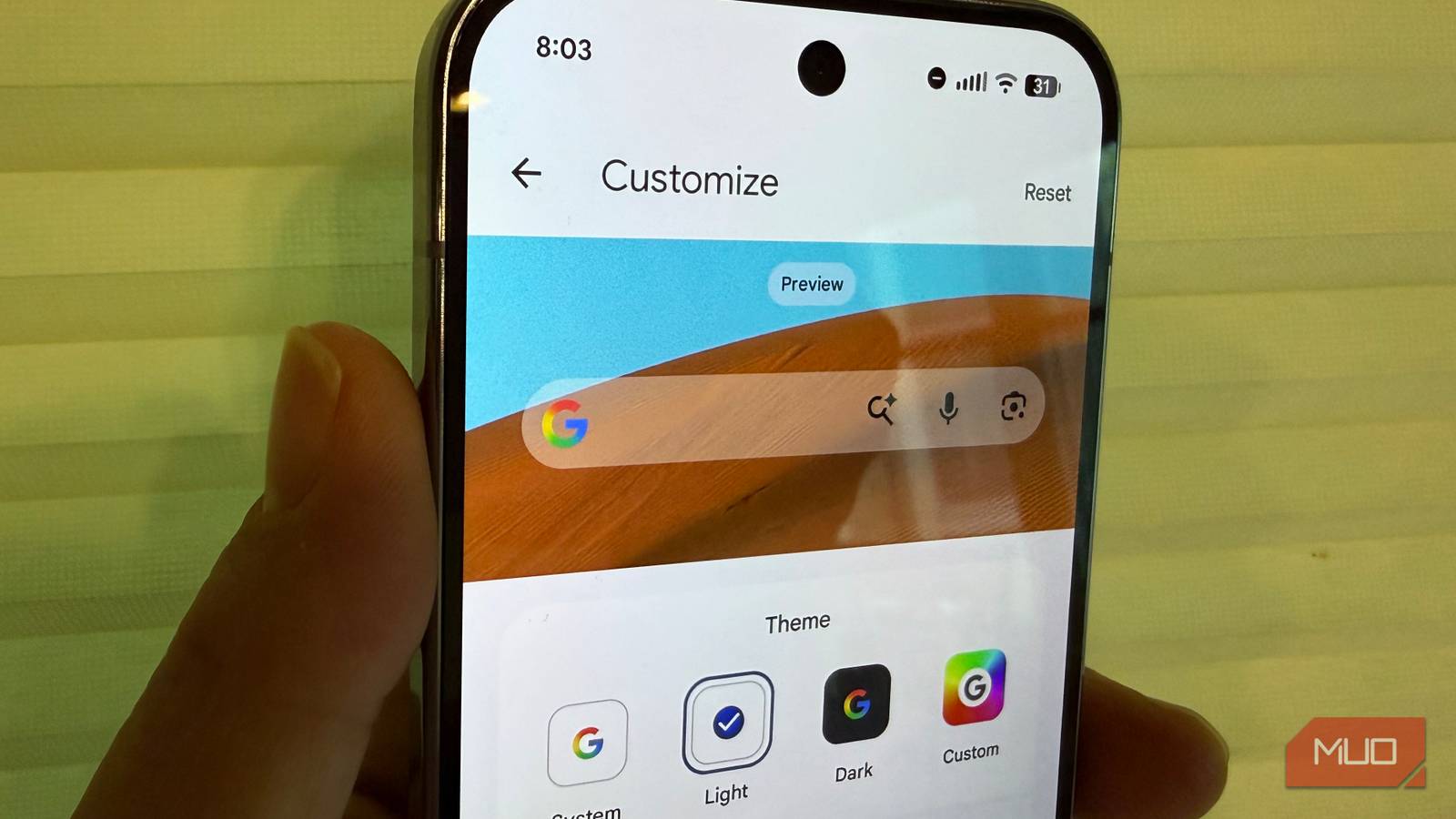
Say “Hey Google” while the widget is visible on your home screen. The widget will immediately listen and perform the voice search. No need to tap anything. If you prefer to tap, the microphone icon does the same. But the hands-free method is perfect when you’re busy cooking or driving. A lesser-known tip: You can also start a voice search by long-pressing the widget and selecting “Voice search,” which opens the voice input interface directly on top of your home screen.
6. Is there a way to remove the Google logo or resize the widget?
While you cannot remove the “G” logo entirely (it’s part of the branding), you can resize the widget by long-pressing it and dragging the edges. On some launchers (like Nova or Pixel Launcher), you can also choose between different widget styles: a pill shape, a slim bar, or a full-width card with rounded corners. If you want a cleaner look, try using the “Search bar only” option under widget settings—that hides the “Google” wordmark but keeps the colorful G icon. The last trick involves productivity tools like conversions.
7. What are the hidden productivity tools—like unit conversions or calculations?
Type a mathematical expression (e.g., “15% of 200” or “sqrt(144)”) directly into the search widget. The result appears instantly in the suggestion box. Similarly, type “100 USD to EUR” or “5 feet to cm” for unit and currency conversions. The widget also handles time zone differences (“4 PM PST to EST”) and date calculations (“days until Christmas”). These mini-answer cards are powered by Google’s Knowledge Graph and save you from opening a separate calculator or converter app. Bonus: Long-press the result to copy it.